flowchart TB
  SV["System Virtualization"]

  SV --> Language["Language"]
  SV --> Emulators["Emulators"]
  SV --> OSLevel["OS Level"]
  SV --> Hardware["Hardware"]

  Language --> Java["Java"]
  Language --> NET[".NET/Mono"]
  Language --> LISP["LISP"]

  Emulators --> QEMU["QEMU"]
  Emulators --> MAME["MAME"]
  Emulators --> snes9x["snes9x"]

  OSLevel --> UML["UML"]
  OSLevel --> Docker["Docker"]
  OSLevel --> OpenVZ["OpenVZ"]
  OSLevel --> Jails["Jails"]

  Hardware --> Hypervisor["Hypervisor"]
  Hardware --> Para["ParaVirtualitzation"]
  Hardware --> Hosted["Hosted"]

  Hypervisor --> PS3["PS/3"]
  Hypervisor --> ESX["VMWare ESX"]
  Hypervisor --> zSeries["zSeries"]
  Hypervisor --> XenH["Xen"]

  Para --> XenP["Xen"]
  Para --> VMI["VMWare VMI"]

  Hosted --> Virtualbox["Virtualbox"]
  Hosted --> VMWare["VMWare"]
  Hosted --> Parallels["Parallels"]
  Hosted --> VirtualPC["VirtualPC"]
👨🏻💻 Cybersecurity
Virtualization
Pablo Fraile Alonso
Introduction
In this assignment, we’ll use virtual machines (VMs) to install operating systems and tinker with them.
Luckily, you’ve already worked with virtualization in AMSA, right? Let’s start with a short quiz to see what you remember and whether we can jump straight to the “important” part.
Quizz
- What is a virtual machine (VM)?
- What is the difference between a VM and a container?
- Can you draw a high-level architecture diagram of a container?
- Can you draw a high-level architecture diagram of a virtual machine (VM)?
Note
If you already know the answers to these questions, feel free to skip ahead to the “How Virtual Machines Work” section.
Virtualitzation
Definition
Definition:
Has some characteristic that is apparent
(in oppositon to a real or absolute one)
Webster:
Existing in essence or effect though not in actual fact.
Our Definition
Virtual Systems: use logic objects to abstract physical components while keeping behaviour intact.
Examples:
- Netwok: Virtual LAN (VLAN), Virtual Private Network (VPN)
- Storage: Storage Area Network (SAN), LUN
- Computers: Virtual Machine (VM), simulators or emulators
- Servers: VHOST, ParaVirtualitzation
Machine Definition
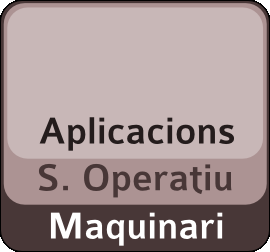
Machine definition:
- Hardware:
- Processor, Memory, Disk, …
- Usually under used
- Software:
- An OS image
- Tighly coupled to HW
- OS controls HW
Machine Virtualization
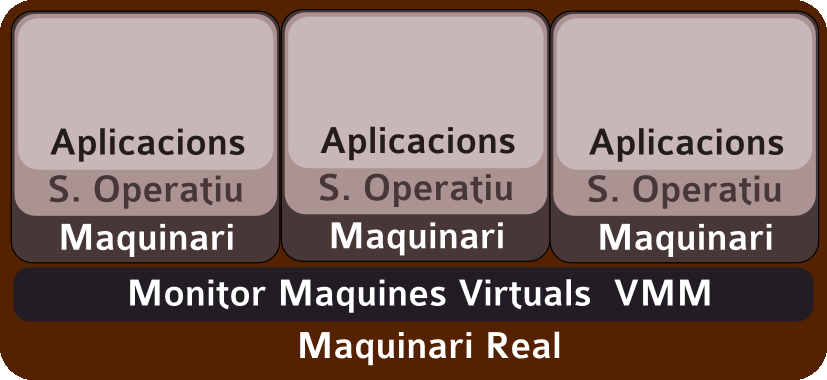
Machine Abstraction
Machine abstraction:
- Virtual hardware: processors, memory, I/O devices, etc.
- Encapsulates OS status and applications
Virtualitzation software:
- Additional indirection level: isolates OS and HW.
- Multiplexes hardware for VMs
- VMs highly isolated
- Better resource management
VM Isolation
Safe Multiplexing:
- Multiples VM in only one host
- Isolating HW from VM
Intermachine safety:
- Virii, problems, etc. are confined to a single VM
Capability insulation:
- VMM (Hipervisor) assigns and controls resources: better usage, no monopolization.
VM Encapsulation
Each VM in a single file/directory:
- Storage (OS,Apps, Data)
- Device State, Memory
Clones & Snapshots:
- Freeze VM state and point-in-time recovery
Ease of distribution:
- Pre-config machines, demos, etc.
- Virtual servers (appliances) .
VM Compatibility
Hardware isolation
- Real HW hidden to VM
- VM accesses “standard” virtual HW
Migration
- Host change != VM reconfig
VM legacy
- Execute legacy apps/OS on new platforms (HW, OS) “creating” standard/legacy HW
Uses
Test And Development
Test
- Test new OS releases
- New configurations
- Test over pristine OS installation
Development
- Have “clean” systems (DLL Hell)
- Systems similar to client
- Multiples target systems
Security And Cost/Consumption
Security
- Easily replicable servers
- SNAPSHOTS
- From: n services x 1 server to 1 service x server
Cost/Consumption
- Hardware sharing (BLADES)
- Reduce power usage
- Hardware reuse
Models
Models: Levels
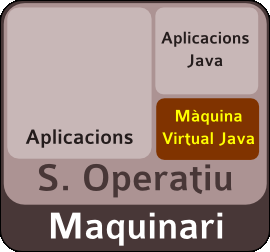
Language Level
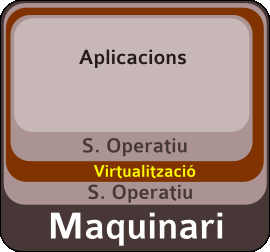
OS Level
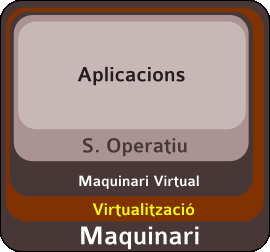
Hardware Level
Language
- Reduced HW requirements
- Easy deployment
- Less security (only Sandbox)
- Usable alongside other models
- Applications:
- Sandbox wrt sistema
- Sandbox wrt other apps
Emulators
- Less HW required
- Easy to deploy
- Enough security
- Can run alongside other apps
- Bad performance:
- Emulates CPU instruction by instruction
- Allows to use binaries from other archs
OS Level
- Middle security:
- Isolates big share of actions
- Everything is running in the same address space
- Good performace
- Sometimes require special OS versions
- Cannot mix architectures/systems
Hardware Hypervisor
- Good security:
- Perfectly isolated machines
- Good control of adressing and resource access
- Good performance
- Usually does not require special OS versions
- Allows mixes of architectures (sometimes)/systems (sometimes)
- Requires special hardware and systems
Paravirtualitzation HW
- Good Security:
- Perfectly isolated machines
- Virtualizator controls addressing/resource access
- Good performance on good HW, underperforming otherwise
- Usually doesn’t require special OS versions
- Allows arch/system mixing (sometimes)
- Doesn’t require special HW (affects performance)
Hosted Machine
- Good security:
- Perfectly isolated HW
- Virtualizator controls addressing/resource access
- Good performance (Special HW required)
- Doesn’t require special OS versions
- Can allow arch/systems mixing (with limitations)
- Requires special HW (virtualization abled processors)
How VirtualBox and QEMU works (overview)
We’ll explore two hypervisors:
- VirtualBox (the easy one, but slower and painfull when you try to do hardcore stuff).
- Qemu (recommended for the real linux gurus, maybe a little bit faster because virt-io)
Note
It’s going to be tough, but don’t worry if you don’t catch all the details (just focus on getting the overall picture).
How VirtualBox (more or less) works.
VMMDev (Virtual Machine Manager Device) in Oracle VirtualBox is a special emulated virtual hardware device that lets the host system and the guest operating system talk to each other.
┌──────────────────────────── HOST ────────────────────────────┐
│                                                              │
│                    VirtualBox process                        │
│                                                              │
│   ┌───────────┐  ┌─────────────┐  ┌─────────────────────┐    │
│   │ Display   │  │ Shared      │  │ Clipboard / DnD /   │    │
│   │ handling  │  │ Folder svc  │  │ Guest properties    │    │
│   └─────┬─────┘  └──────┬──────┘  └──────────┬──────────┘    │
│         │               │                    │               │
│         └───────────────┴──────────┬─────────┘               │
│                                    │                         │
│                         VMMDev / HGCM                        │
│                  VirtualBox host↔guest API                   │
└────────────────────────────────────┬─────────────────────────┘
                                     │
                        virtual hardware boundary
                                     │
┌──────────────────────────── GUEST ─┼────────────────────────┐
│                                    │                        │
│                         ┌──────────▼──────────┐             │
│ kernel                  │     vboxguest       │             │
│                         │   kernel driver     │             │
│                         └──────────┬──────────┘             │
│                                    │                        │
│              ┌─────────────────────┼─────────────────┐      │
│              │                     │                 │      │
│        ┌─────▼──────┐       ┌───────▼──────┐   ┌──────▼───┐ │
│        │ VBoxService│       │   vboxsf     │   │ graphics │ │
│        │ daemon     │       │ filesystem   │   │ support  │ │
│        └─────┬──────┘       └──────────────┘   └──────────┘ │
│              │                                              │
│        system services                                      │
│        • time sync                                          │
│        • automount                                          │
│        • guest properties                                   │
│        • host/guest info                                    │
│                                                             │
│ userspace                                                   │
│        ┌────────────────┐                                   │
│        │   VBoxClient   │                                   │
│        │ per-user agent │                                   │
│        └───────┬────────┘                                   │
│                │                                            │
│        • shared clipboard                                   │
│        • drag & drop                                        │
│        • display resize                                     │
│        • seamless mode                                      │
│        • desktop integration                                │
│                                                             │
│                 Linux desktop / applications                │
└─────────────────────────────────────────────────────────────┘
VirtualBox Installation includes
- Kernel Module (Host)
- VirtualBox Userspace Integrations (Host)
- You’ll probably want VirtualBox Guest Additions on the GUEST, so it can communicate to the host the screen ratio, shared clipboard, etc.
How virt-manager/libvirtd/qemu/kvm works
┌────────────────────────────────── HOST ────────────────────────────────────┐
│                                                                            │
│  MANAGEMENT / CONTROL PLANE                                                │
│                                                                            │
│   ┌──────────────────────┐                                                 │
│   │ virsh / virt-manager │                                                 │
│   └──────────┬───────────┘                                                 │
│              │ libvirt API                                                 │
│              ▼                                                             │
│   ┌─────────────────────────────┐                  [ LIBVIRT ]             │
│   │ virtqemud / libvirtd       │                                           │
│   │                             │                                          │
│   │ • VM configuration/XML      │                                          │
│   │ • start/stop VM             │                                          │
│   │ • storage/network setup     │                                          │
│   │ • migration orchestration   │                                          │
│   │ • talks QMP to QEMU         │                                          │
│   └──────────────┬──────────────┘                                          │
│                  │ starts/configures                                       │
│                  ▼                                                         │
│ ┌───────────────────────────────────────────────────────────────────────┐  │
│ │                        QEMU PROCESS                         [ QEMU ]  │  │
│ │                                                                       │  │
│ │  Virtual machine model                                                │  │
│ │                                                                       │  │
│ │   ┌────────────┐ ┌────────────┐ ┌────────────┐ ┌──────────────────┐   │  │
│ │   │ virtio-net │ │virtio-blk/ │ │ virtio-gpu │ │ virtio-serial    │   │  │
│ │   │ frontend   │ │virtio-scsi │ │ / VGA etc. │ │ PCI controller   │   │  │
│ │   └──────┬─────┘ └──────┬─────┘ └──────┬─────┘ └────────┬─────────┘   │  │
│ │          │              │              │                 │            │  │
│ │   ┌──────▼──────┐ ┌─────▼────────┐     │        ┌────────▼─────────┐  │  │
│ │   │ net backend │ │ block backend │     │       │ chardev backend  │  │  │
│ │   │ TAP/socket  │ │ qcow2/raw/... │     │       │ socket/etc.      │  │  │
│ │   └─────────────┘ └───────────────┘     │       └──────────────────┘  │  │
│ │                                         │                             │  │
│ │  Guest RAM mapping                      │                             │  │
│ │  VM device emulation                    │                             │  │
│ │  firmware/machine model                 │                             │  │
│ │  PCI buses / chipset / devices          │                             │  │
│ │                                         │                             │  │
│ │                KVM accelerator interface                              │  │
│ └───────────────────────────┬───────────────────────────────────────────┘  │
│                             │                                              │
│               open("/dev/kvm"), ioctl(), mmap()                            │
│                             │                                              │
│ ┌───────────────────────────▼───────────────────────────────────────────┐  │
│ │                    LINUX KERNEL                           [ KVM ]     │  │
│ │                                                                       │  │
│ │   ┌───────────────────────────────────────────────────────────────┐   │  │
│ │   │ KVM                                                           │   │  │
│ │   │                                                               │   │  │
│ │   │ • create VM / vCPUs                                           │   │  │
│ │   │ • run guest CPU via VT-x / AMD-V                              │   │  │
│ │   │ • guest/host CPU state                                        │   │  │
│ │   │ • second-level address translation (EPT/NPT)                  │   │  │
│ │   │ • VM exits                                                    │   │  │
│ │   │ • interrupt injection / in-kernel irqchip where applicable    │   │  │
│ │   └───────────────────────────────────────────────────────────────┘   │  │
│ │                                                                       │  │
│ │    OPTIONAL FAST DATA PATHS                                           │  │
│ │                                                                       │  │
│ │   ┌────────────┐      ┌────────────┐       ┌────────────────────┐     │  │
│ │   │ vhost-net  │      │ TAP /      │       │ Linux block /      │     │  │
│ │   │            │      │ bridge     │       │ filesystem / AIO   │     │  │
│ │   └────────────┘      └────────────┘       └────────────────────┘     │  │
│ │                                                                       │  │
│ │               Linux scheduler / memory / IOMMU / networking           │  │
│ └───────────────────────────┬───────────────────────────────────────────┘  │
│                             │                                              │
│                       VT-x / AMD-V                                         │
│                             │                                              │
│                      PHYSICAL CPU/RAM                                      │
│                                                                            │
└─────────────────────────────┬──────────────────────────────────────────────┘
                              │
                    virtualization boundary
                              │
┌─────────────────────────────┼──────────── GUEST ──────────────────────────┐
│                             │                                             │
│                      Guest Linux kernel                                   │
│                                                                           │
│      ┌──────────────────────┴───────────────────────────────────────┐     │
│      │                                                              │     │
│      │                    GUEST DEVICE DRIVERS                      │     │
│      │                  [ mostly Linux kernel ]                     │     │
│      │                                                              │     │
│      │  ┌────────────┐ ┌─────────────┐ ┌────────────┐ ┌──────────┐  │     │
│      │  │ virtio_net │ │ virtio_blk  │ │ virtio_gpu │ │virtio_   │  │     │
│      │  │            │ │ virtio_scsi │ │            │ │console   │  │     │
│      │  └──────┬─────┘ └──────┬──────┘ └──────┬─────┘ └────┬─────┘  │     │
│      │         │              │               │            │        │     │
│      │         └──────────────┴──────┬────────┴────────────┘        │     │
│      │                               │                              │     │
│      │                         virtio queues                        │     │
│      │                   descriptors in guest RAM                   │     │
│      └───────────────────────────────┬──────────────────────────────┘     │
│                                      │                                    │
│                                                                           │
│                                                                           │
│                       applications / desktop                              │
└───────────────────────────────────────────────────────────────────────────┘
What you (should) install if you use qemu
On host:
- Kernel Module (KVM, probably already installed)
- qemu (for talking with KVM), allowing us to create virtual machines, map devices, etc.
- (optional, but recommended): libvirtd daemon for having a “standard” userspace API to create virtualmachines. Already includes a “good” network configuration.
- (optional, but recommended): virt-manager (or similar: gnome-boxes, virsh-cli etc.) as a “frontend” for libvirtd. So you can create virtual machines via UI, etc.
On guest:
- If you’re virtualizing a windows machine, you’ll probably need on the guest the windows virtio guest drivers so it can paravirtualize the I/O devices.
Networking
TUN/TAP devices
- This is essentially how connections to VPNs, virtual machines, and similar systems work. In fact, when you were using GNS3, you were creating TUN and TAP devices all day and all night.
- If you use QEMU, you’ll probably use some mechanism of TUN/TAP devices for networking, virtualbox does things differently nowadays.
Note
We won’t dive into implementing a TUN/TAP interface here, but it’s a great exercise if you want to understand how they work. As a bonus, you’ll likely come away with a much better understanding of how VPNs like OpenVPN and WireGuard work under the hood.
Configuration 1: Not attached NIC
No usable network connection
Really, that’s it. What did you expect?
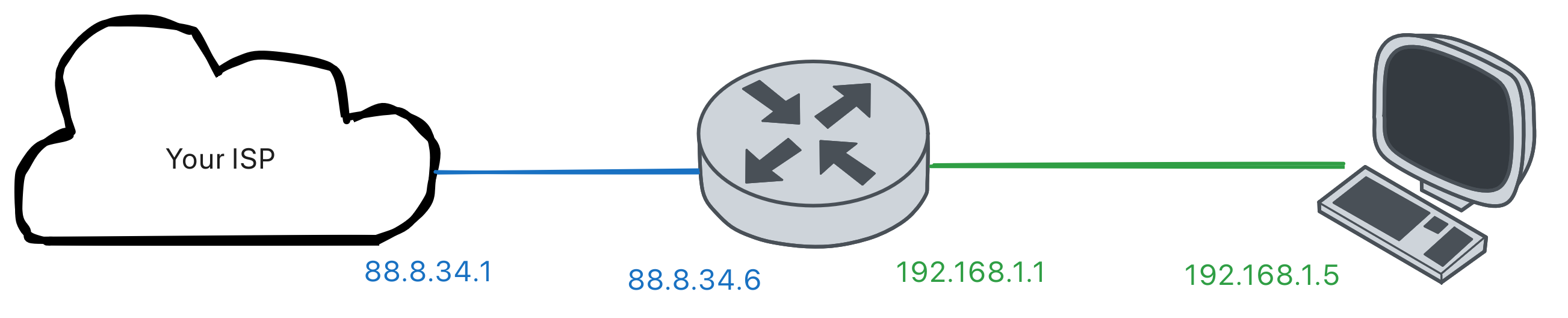
Configuration 2: NAT
Easiest and default configuration for VirtualBox and QEMU.
VirtualBox
It’s the default, you’ve internet connection on guest, but no ip to address to the guest (since virtualbox manages it’s himself).
If you want to have SSH connection, or open other port, you’ll have to enable forwarding (just like you would do on your router):
VirtualBox → VM Settings → Network → Adapter 1 → NAT → Advanced → Port ForwardingAnd you’ll connect via the forward:
ssh user@localhost -p 2222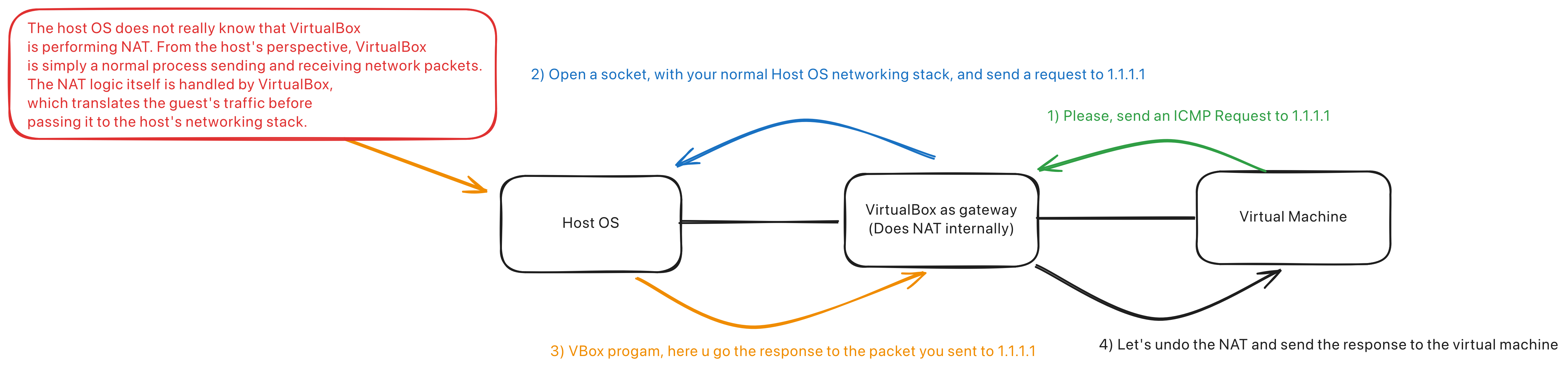
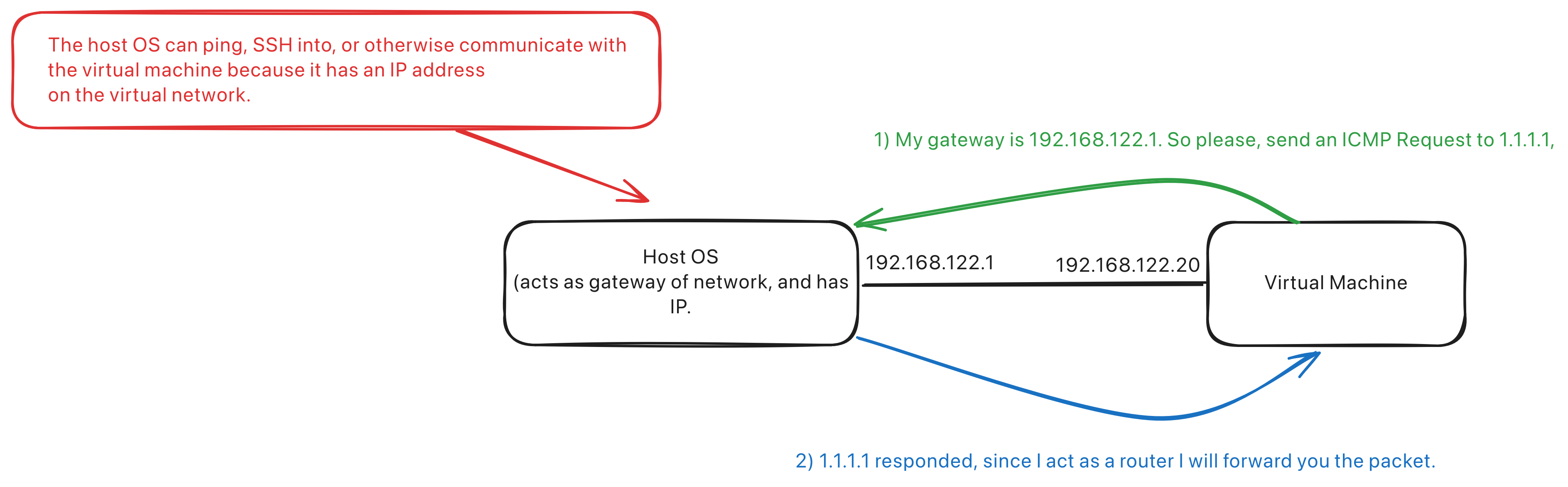
QEMU
- With libvirtd, it’s the default, and it’s similar to:
Configuration 3: NAT Network
- Multiple VMs share a private network:
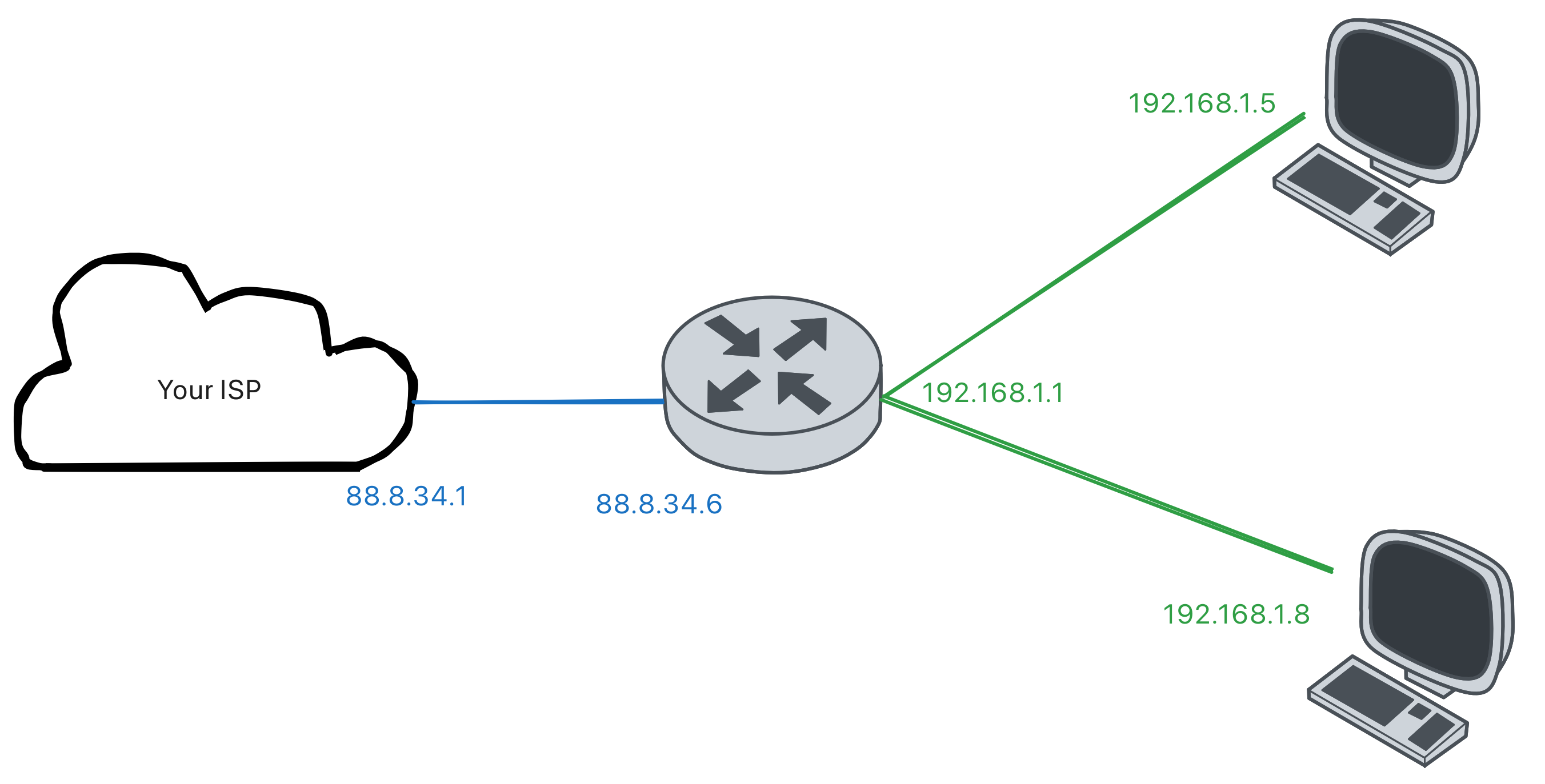
VirtualBox
- Similar to one NAT device, but:
- You can ping between devices on the same network.
- Host still does not have access to the NAT network, so, if you want to access some service, you’ll have to forward…
QEMU
With libvirt, there isn’t really a separate concept of a “NAT Network” like there is in VirtualBox.
The default libvirt NAT configuration is already a shared virtual network.
The previous example simply had one VM attached to it, with multiple VMs, they would all connect to that same NAT network. That’s essentially the only difference.
Configuration 4: Bridged Adapter
- VM appears directly on the physical LAN like another computer.
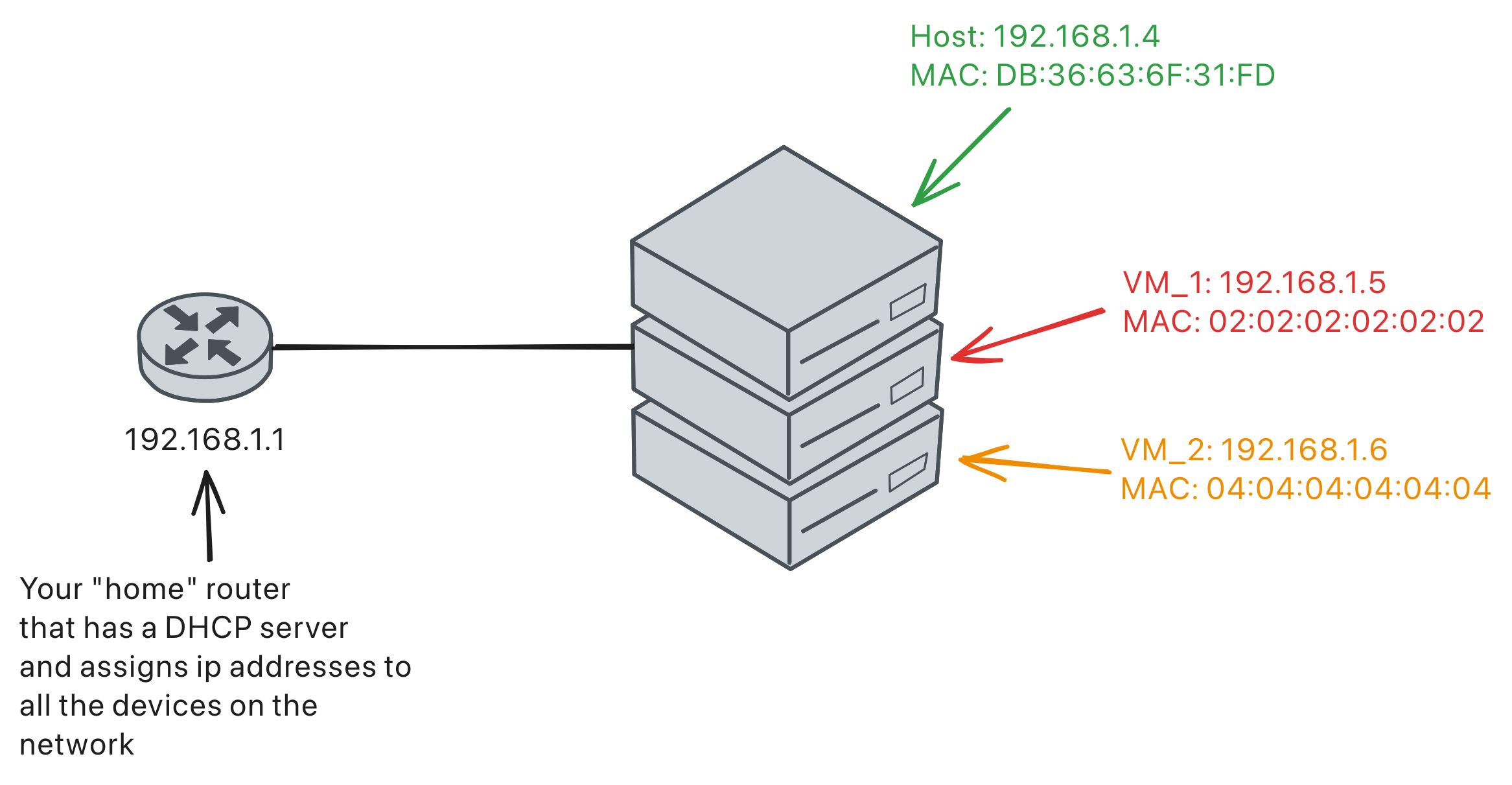
VirtualBox
Ethernet
Put’s the interface on promiscuous mode, and then we’ve N MAC’s for the N operating systems. The VirtualBox Kernel module is the one that forwards the packets to the virtual machines.
![]()
Wireless
It’s not that easy to enable promiscuous mode on wireless devices
You can have a MAC address associated with multiple ip’s (see 3.3.4.1 in RFC 1122). So, the virtualbox kernel module does a mapping of IP <=> Virtual Machine.
![]()
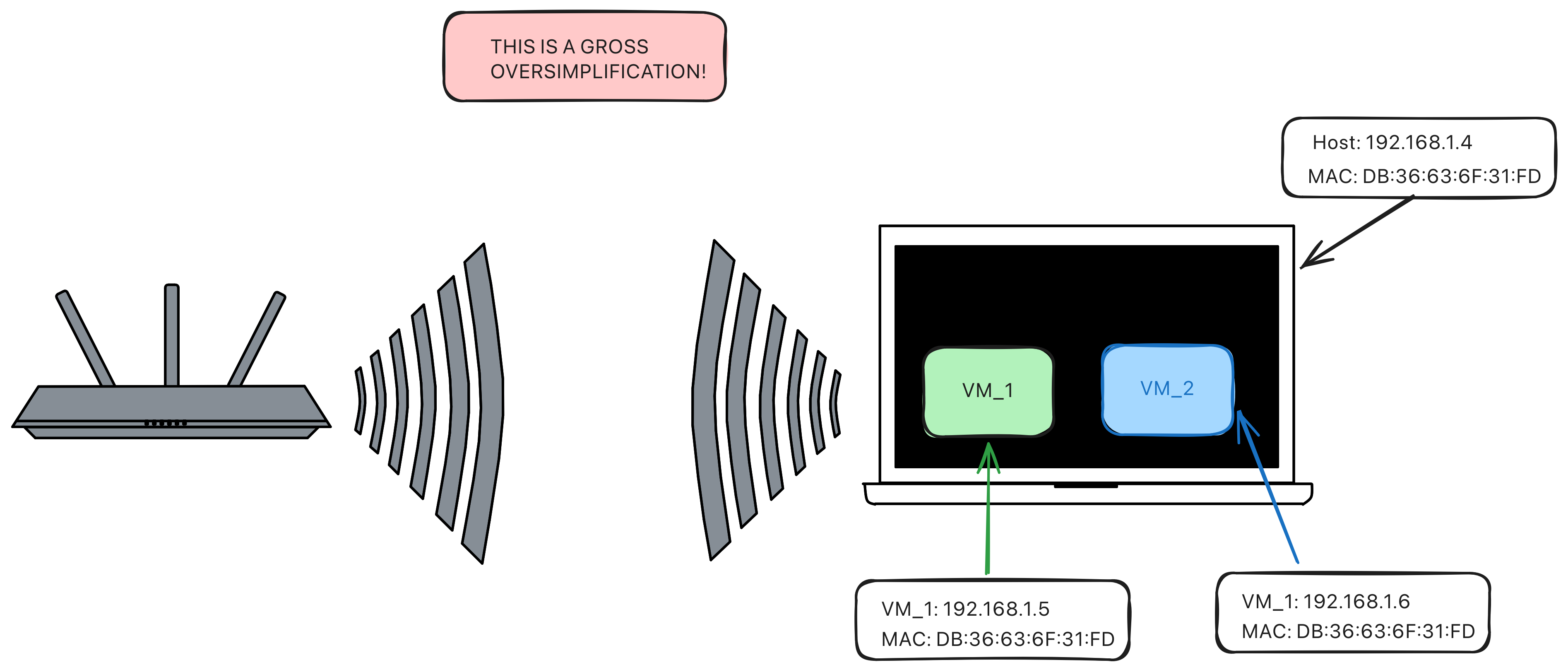
QEMU (part 1)
- For QEMU/KVM with libvirt, it’s going to be though….
- It uses Linux Bridges for it, and they act as a “virtual” ethernet switch.
- BUT, you don’t use raw ip addresses configured via
ip addr, you use NetworkManager for handling the DHCP, ip configuration, wireless, etc…
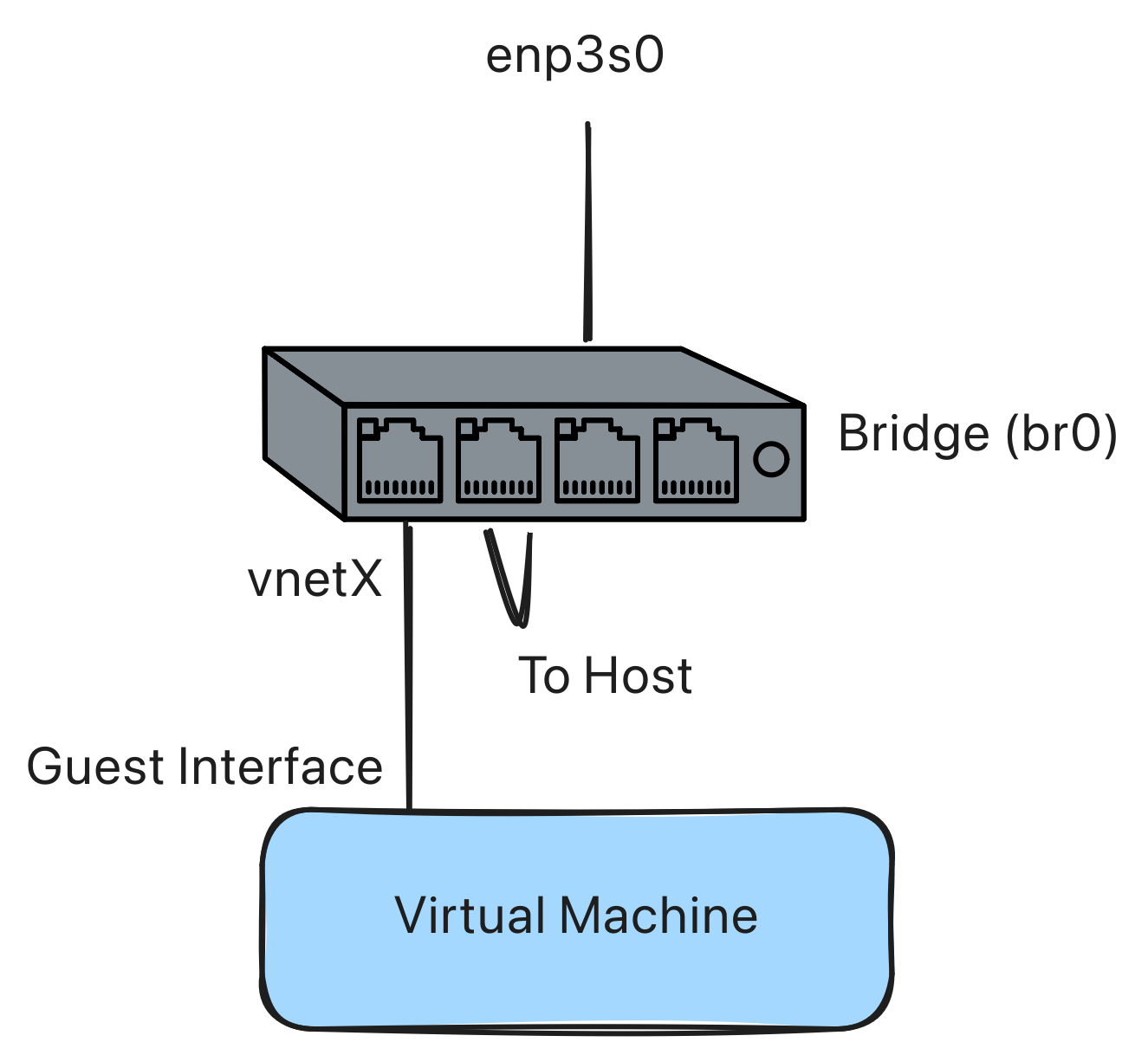
QEMU (part 2)
- NetworkManager owns the host network configuration.
- The Linux bridge, e.g.
br0, is the software Ethernet switch. - The physical Ethernet NIC, e.g.
enp3s0, becomes a port of that switch. - The host IP address goes on
br0, not onenp3s0. - virt-manager/libvirt creates a TAP device, e.g.
vnetX, for each VM and plugs it intobr0.
QEMU (part 3)
With NetworkManager (nmcli), create the bridge profile and attach the wired NIC:
# Find the real wired interface and the active wired profile name.
$ nmcli device status
$ nmcli connection show --active

# Create br0. STP is usually disabled for a simple laptop/desktop bridge.
$ sudo nmcli connection add type bridge con-name br0 ifname br0
$ sudo nmcli connection modify br0 bridge.stp no ipv4.method auto ipv6.method auto

# Attach the physical Ethernet device to the bridge.
# Replace enp3s0 with your wired interface.
$ sudo nmcli connection add type ethernet con-name br0-port-enp3s0 ifname enp3s0 controller br0

# If the old direct Ethernet profile autoconnects, disable it.
# Replace "Wired connection 1" with the active profile name found above.
$ sudo nmcli connection modify "Wired connection 1" connection.autoconnect no
$ sudo nmcli connection down "Wired connection 1"

# Bring up the bridge and its port.
$ sudo nmcli connection up br0
$ sudo nmcli connection up br0-port-enp3s0
Check that the IP is on the bridge and that the Ethernet NIC is only a port:
QEMU (part 4)
Then configure the VM in virt-manager:
- Open the VM details.
- Select the NIC.
- Set Network source to Bridge device.
- Set Device name to
br0. - Set Device model to
virtio. - Apply and start/restart the VM.
In libvirt XML, virt-manager is creating the same idea as:
QEMU (part 5)
Wi-Fi is a mess here:
- A Linux bridge wants Ethernet-like ports that can forward frames for several MAC addresses.
- Normal Wi-Fi station mode is usually associated with one client MAC address.
- Many wireless drivers/APs do not support the needed 4-address mode.
- Promiscuous mode on Wi-Fi does not magically make the AP accept frames for the VM MAC addresses.
- The usual failure is:
Device does not allow enslaving to a bridge.
This is why the libvirt networking documentation warns that wireless interfaces cannot be attached to a Linux host bridge. If the host is on Wi-Fi, use libvirt NAT unless the VM really must be reachable from the LAN.
Configuration 5: Host-only
- This can be used to create a network containing the host and a set of virtual machines, without the need for the host’s physical network interface. Instead, a virtual network interface, similar to a loopback interface, is created on the host, providing connectivity among virtual machines and the host
- We will NOT have internet on our VM’s….
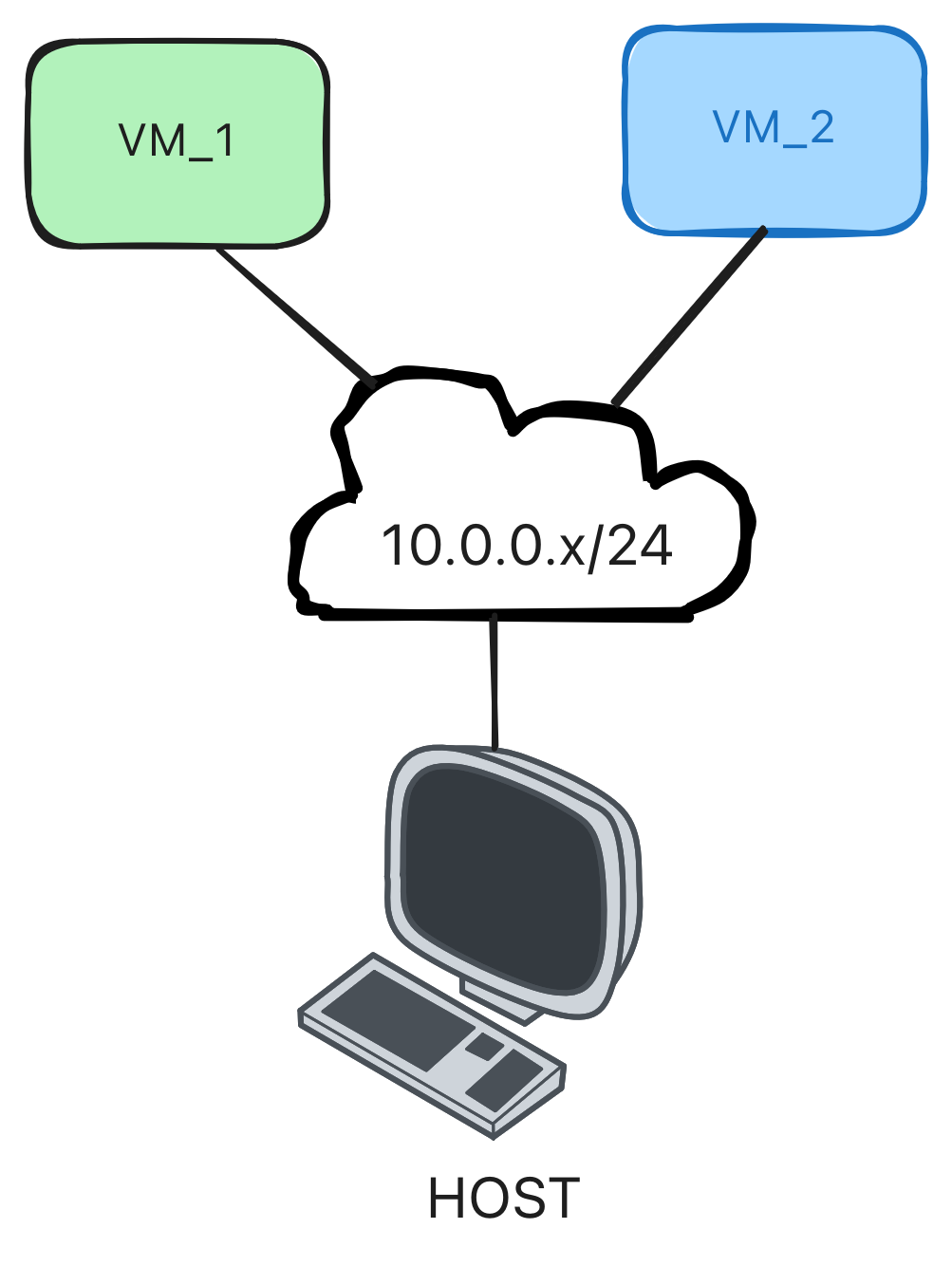
VirtualBox
The vboxnetadp kernel module creates the host-side virtual NIC, e.g. vboxnet0, and attaches that NIC as a trunk port to the internal VirtualBox network (sending packets to the vboxnetflt kernel module).
The vboxnetflt kernel module intercept/injects the ethernet frames and sends it to the Internal Network of virtualbox (vboxdrv kernel module).
The vboxdrv kernel module implements the virtualbox internal networking and performs the virtual ethernet switching between ports.
QEMU
With libvirtd (using the virt-manager client):
- Open Edit, Connection Details.
- Go to Virtual Networks.
- Click + to create a new network.
- Give it a name, e.g. host-only.
Configuration 6: Internal Network
This can be used to create a different kind of software-based network which is visible to selected virtual machines, but not to applications running on the host or to the outside world.
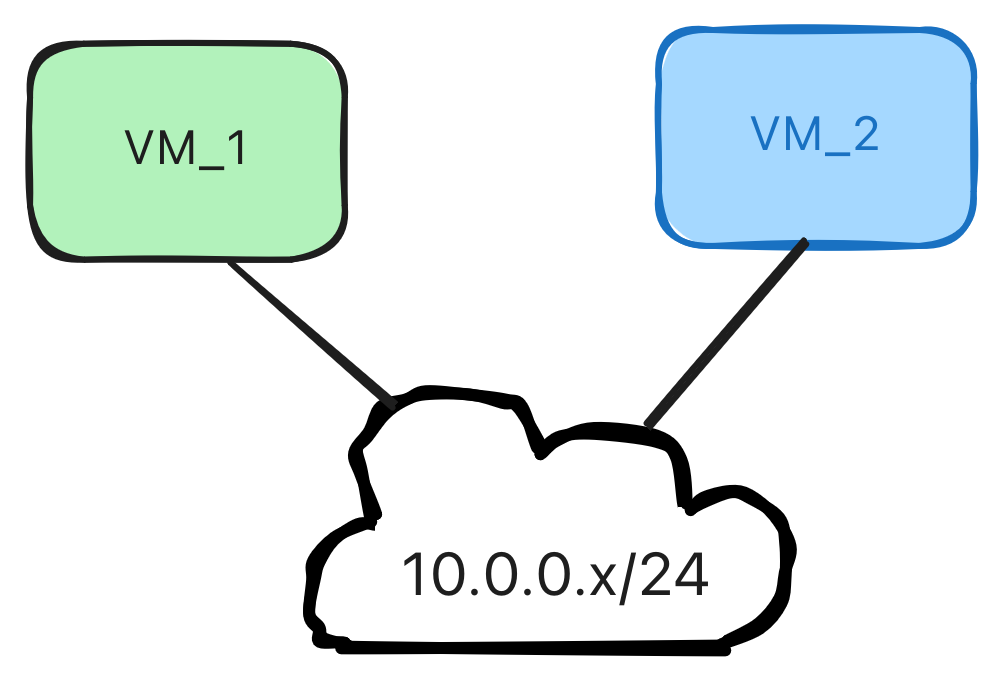
VirtualBox
- The same as Host-only but without the Host part.
- Really, that’s it, an internal network for vm’s.
QEMU
- Create a virtual network simply and enable it:
$ cat internal-net.xml
─────┬────────────────────────────────────────────────────────────────────────────────────────────────────────────────────────────────────────────
     │ File: internal-net.xml
─────┼────────────────────────────────────────────────────────────────────────────────────────────────────────────────────────────────────────────
   1 │ <network>
   2 │   <name>internal-net</name>
   3 │   <bridge name="virbr10" stp="on" delay="0"/>
   4 │ </network>
─────┴────────────────────────────────────────────────────────────────────────────────────────────────────────────────────────────────────────────

$ sudo virsh net-define internal-net.xml
$ sudo virsh net-start internal-net- Then, manually configure the ip’s inside each one of the VM’s.
Other configurations
- MacVTAP (just for QEMU): Virtual Machines can access to the internet, and can ping each other, but the host operating system can’t see them.
- vDPA devices: Uses standard Virtio rings/queues directly accessible by the guest or container via DMA (Direct Memory Access), removing software emulation overhead. See this redhat post.
- Generic Driver (virtualbox) and other modes: Allow the user to select a driver which can be included with Oracle VM VirtualBox or be distributed in an extension pack, connect a local VM to a subnet on a remote cloud service, etc.
Disks
VirtualBox Virtual Disk Formats
A virtual disk image is a file on the host that is presented to the guest operating system as if it were a physical hard drive.
VirtualBox supports several formats:
- VDI: VirtualBox’s native disk format.
- VMDK: Originally developed by VMware.
- VHD: Microsoft’s Virtual Hard Disk format.
Inside the VM, these files appear as normal disks such as /dev/sda.
QEMU
QEMU/KVM commonly uses the QCOW2 format (QCOW2 = QEMU Copy-On-Write version 2)
Example for creating a disk of 40GB:
$ qemu-img create -f qcow2 debian.qcow2 40GThe QCOW format provides:
- Dynamic disk allocation.
- Copy-on-Write (you can have an image as base, and then have derived images for student 1 and student 2)
- Snapshots.
- Compression.
- Encryption.
Move the Virtual Machine
- A simple VM can often be moved or backed up by copying its virtual disk.
- The operating system, programs and user files are still there because they are stored inside the virtual disk.
- However, the disk does not copy the complete VM configuration (RAM config, CPU’s, network config, USB passhtrough, PCI passthrough, etc).
USB passthrough
Identify your devices
- On Linux, we can inspect the devices connected to the host with:
$ lsusb- Or the pci devices with:
$ lspciPasshtrough your devices
- USB passthrough allows a physical USB device connected to the host to be attached directly to a virtual machine.
- Connect the USB device to the host.
- Open the VM configuration.
- Select the USB device to attach (the identifier can be usefull)
- Start the VM or attach it while it is running.
Note
Once attached, the USB device is used by the virtual machine and is normally unavailable to the host until it is detached.

Cybersecurity - 🏠 Home